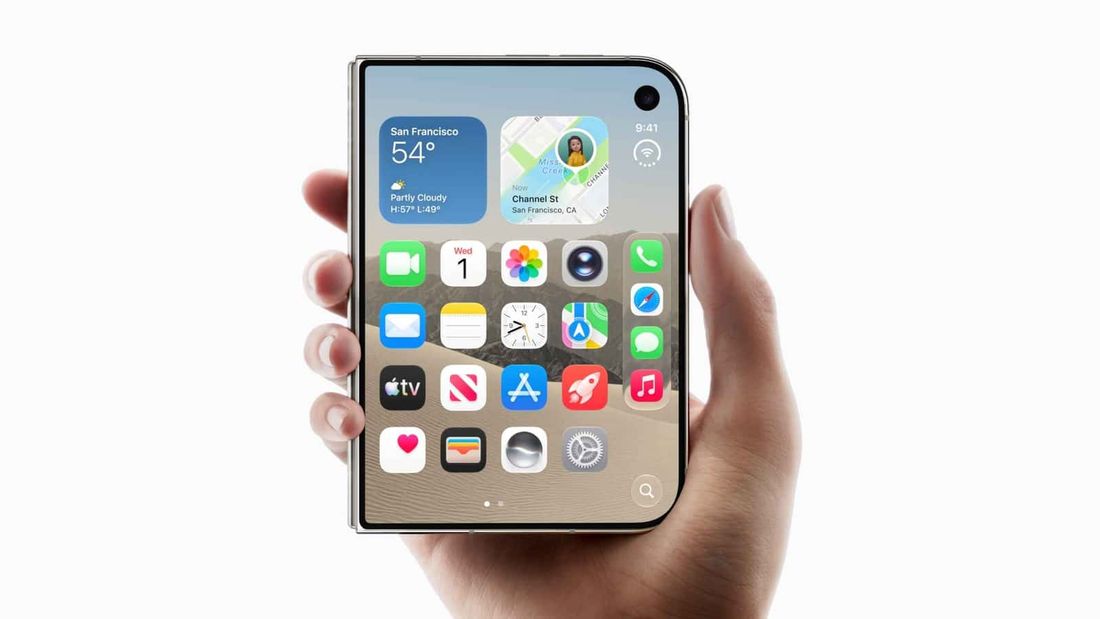
As Apple moves towards developing a new category of foldable phones, configuring device settings to suit their new design and different ways of use is becoming increasingly important.
In this context, we explore nine settings that could make using the iPhone Duo easier and more convenient, focusing on improving access to essential functions and making the most of the device’s capabilities.
These settings include options related to fingerprint recognition, volume controls and taking screenshots, as well as enhancements to the photography experience and phone-locking features.
𝗠𝗮𝗸𝗶𝗻𝗴 𝗣𝗵𝗼𝗻𝗲 𝗨𝗻𝗹𝗼𝗰𝗸𝗶𝗻𝗴 𝗘𝗮𝘀𝗶𝗲𝗿
One of the most useful settings is registering more than one fingerprint, allowing users to unlock the phone with different fingers, particularly when changing how they hold the device between its folded and unfolded positions.
Users can also take advantage of the Apple Watch unlock feature, making it easier to access the device and reducing the need to use the fingerprint sensor every time.
Another option is enabling the Rest Finger to Open feature, which allows users to unlock the phone simply by placing a finger on the Touch ID sensor, without having to press the button, providing a smoother experience.
𝗦𝗼𝘂𝗻𝗱 𝗮𝗻𝗱 𝗦𝗰𝗿𝗲𝗲𝗻
The settings also include adjusting the volume buttons by disabling the Fixed Volume Controls option, allowing the buttons’ functions to adapt to the phone’s orientation.
This feature is particularly important for foldable devices, which can be used in multiple positions, whether the screen is fully open or folded.
Users can also enable Reachability through the Accessibility settings to make it easier to reach distant parts of the screen when using the phone with one hand. This feature is especially useful with wider displays.
𝗦𝗵𝗼𝗿𝘁𝗰𝘂𝘁𝘀 𝗧𝗵𝗮𝘁 𝗦𝗮𝘃𝗲 𝗧𝗶𝗺𝗲
Another useful setting is Back Tap, which allows users to perform specific actions by double- or triple-tapping the back of the phone.
This feature can be customized to take screenshots, providing a quick way to perform the task without having to press the side buttons simultaneously.
Users should also make use of the Shortcuts app to create an automation that automatically locks the phone when it is folded and closed. This makes the device easier to use while helping protect it.
𝗘𝗻𝗵𝗮𝗻𝗰𝗶𝗻𝗴 𝘁𝗵𝗲 𝗣𝗵𝗼𝘁𝗼𝗴𝗿𝗮𝗽𝗵𝘆 𝗘𝘅𝗽𝗲𝗿𝗶𝗲𝗻𝗰𝗲
Users can customize camera controls to make frequently used functions easier to access, including the flash, Live Photos and Night Mode.
Organizing these options helps reduce the time needed to access photography tools, particularly when taking quick pictures.
The settings also include the option to disable Smart Take Flash, a feature associated with the flash indicator when taking photos.
𝗦𝗺𝗮𝗹𝗹 𝗦𝗲𝘁𝘁𝗶𝗻𝗴𝘀, 𝗕𝗶𝗴 𝗜𝗺𝗽𝗮𝗰𝘁
These adjustments highlight the importance of customizing foldable phone settings to suit their design. The user experience is not limited to screen size or the folding mechanism; it also depends on how easily users can access everyday functions and how quickly they can complete tasks.
For users, starting with registering additional fingerprints, enabling Back Tap, adjusting the volume buttons and customizing camera settings could be practical steps towards making better use of the device’s capabilities.